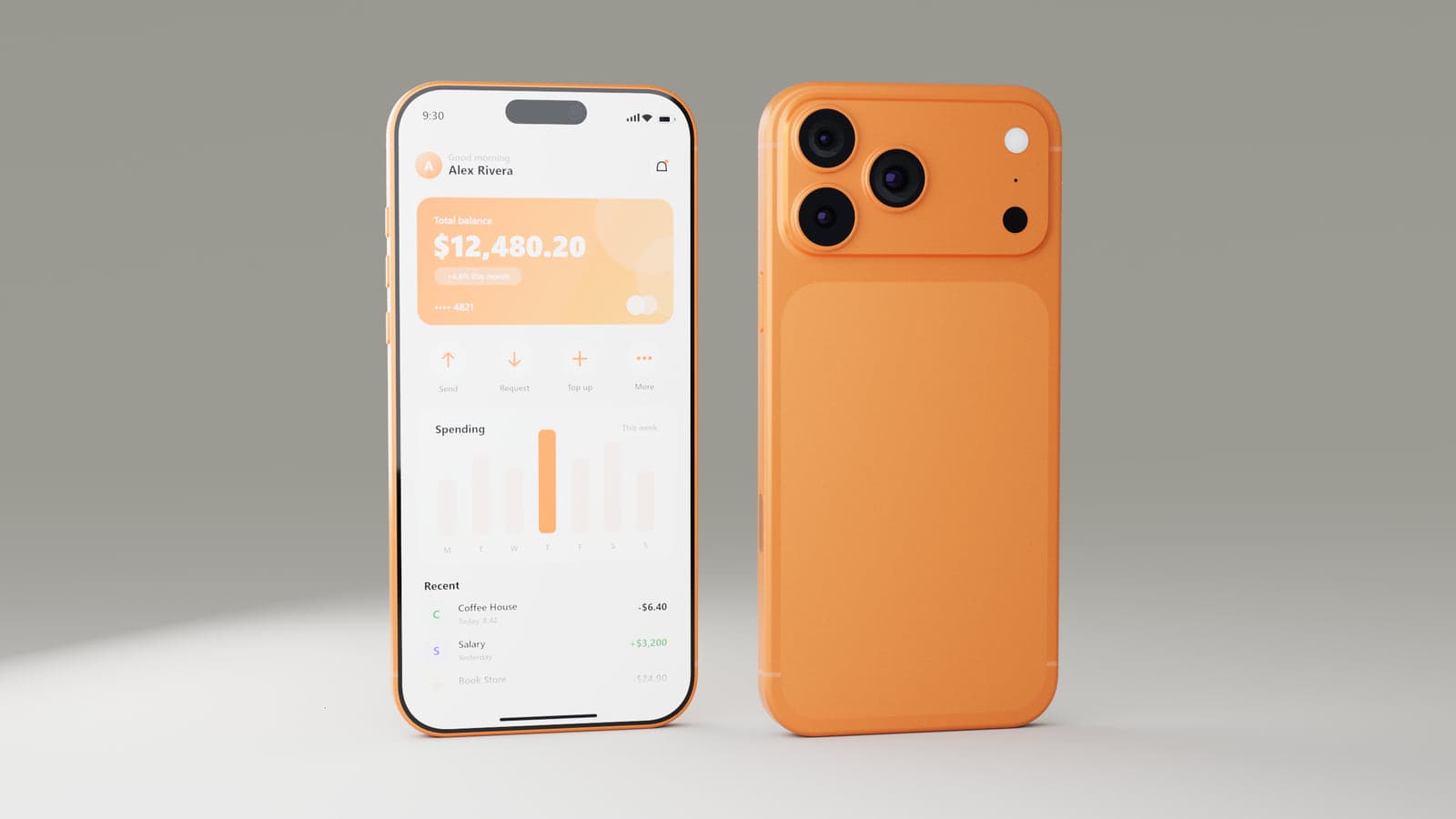
Show your app on a phone, from any angle
A phone mockup gives people a better idea of how a screen will look on a device. Use it to present a homepage concept, show the main screens of an app or create a visual for a launch announcement.
Unlike a flat phone frame, MockFold uses a 3D device you can rotate and position. You can show the front, back or an angled view, and you can place up to three phones in the same scene.
Choose a Pro Max style
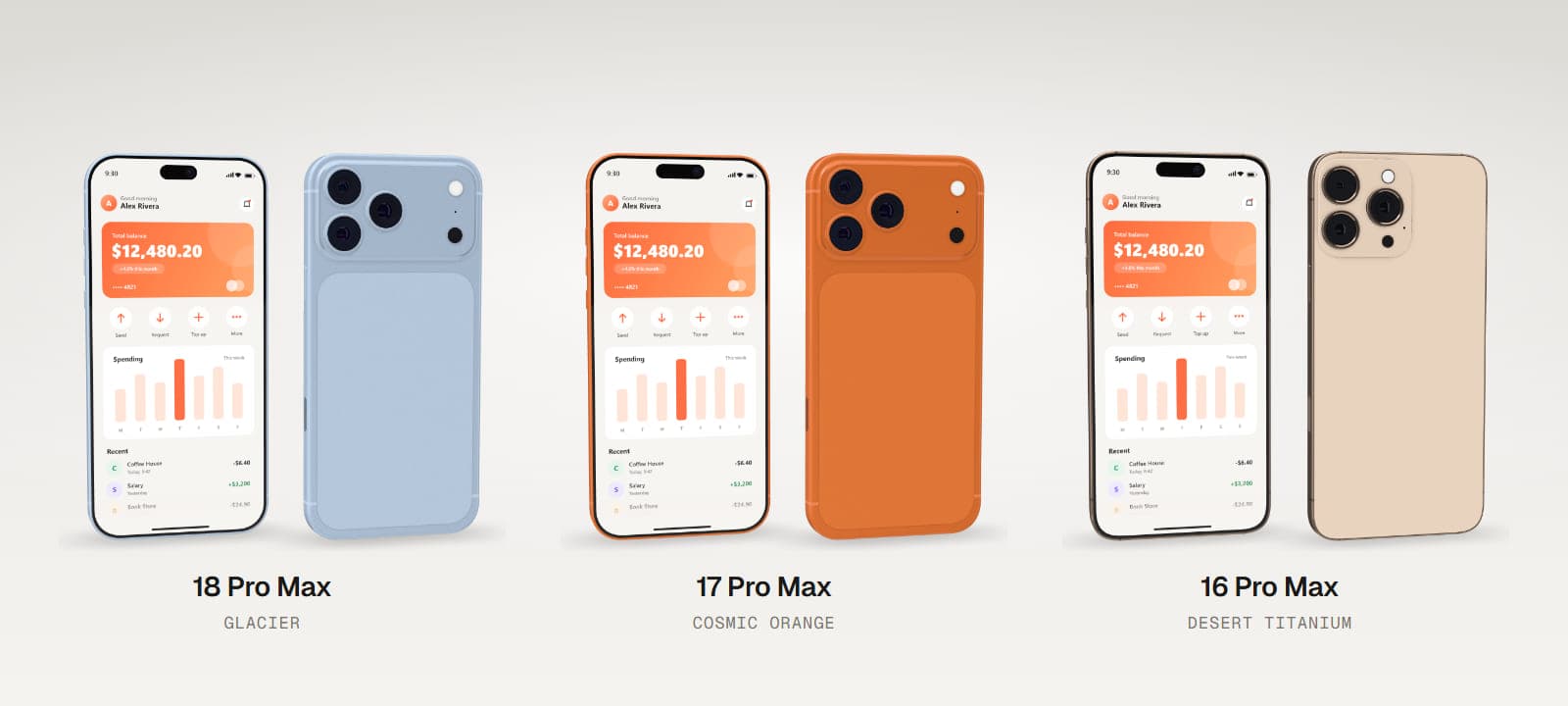
The Phone mockup includes independently built representations of iPhone 18 Pro Max, iPhone 17 Pro Max and iPhone 16 Pro Max. Choose from the finish names available for the selected model, such as Burgundy and Glacier on the 18 Pro Max style or Natural Titanium on the 16 Pro Max style.
These are visual mockups, not official device models or exact replicas. Details may differ from the physical phones.
How to create an iPhone app mockup
- Pick a model and finish. Select the device style you want to show.
- Upload your screenshot. Use PNG, JPEG or WebP artwork.
- Fit the screen. Choose Fill or Fit, then adjust zoom and position.
- Choose a layout or template. Start with one of ten prepared scenes or set the phones up yourself.
- Set the canvas and background. Choose a post, story or landscape layout, then export the finished image.
Make a scene for your design
Use a single phone for a clean product image, two phones for a side-by-side comparison or three for a set of app screens. The scene templates include Minimal, Floating, Dark premium, App launch and Camera detail, among others. You can also change rotation, position and size for each phone.
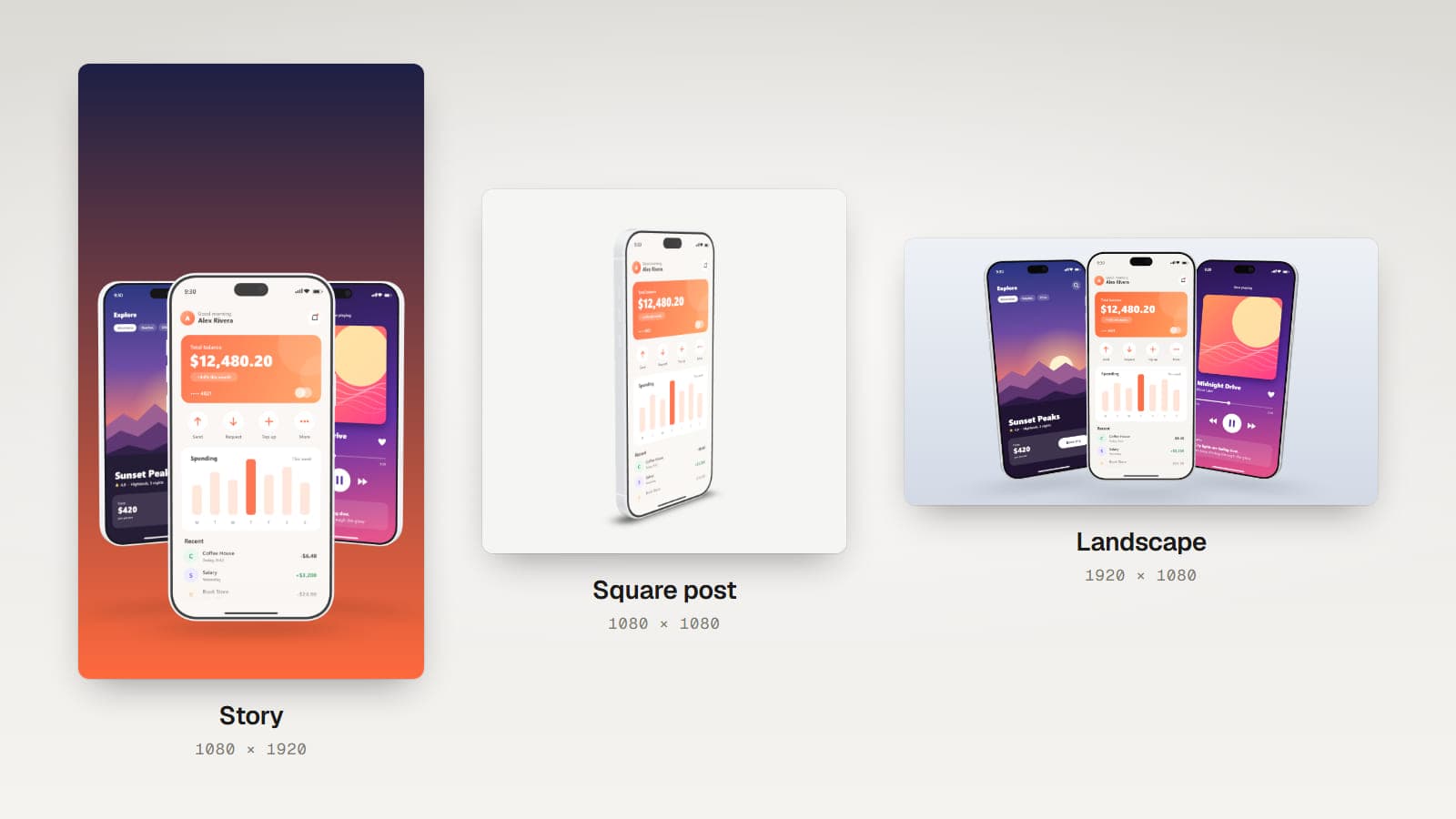
Templates arrange the devices and leave room for other design elements. MockFold does not include a text overlay editor, so add your headline in your design tool after exporting if needed.
Ready for social posts and websites
Choose a square 1080 x 1080 canvas, portrait 1080 x 1350, story 1080 x 1920, landscape 1920 x 1080 or a custom size. Background choices include solid colour, gradients, your own background image or transparency.
There are six editor lighting presets, along with brightness, shadow and screen glare controls. Preview the device from the front or back, or choose a custom camera angle.
Export your phone mockup
Starter supports PNG and JPEG exports of your own screenshots. Pro adds larger images, multiple angles and Render Studio still images. The Phone mockup does not export video, GIF, 3D files or an animated spin.
The included demo screens and templates let you explore the editor and test exports before paying.
Good to know
MockFold currently supports three Pro Max style iPhones, not the standard, Plus, Air or SE ranges. It accepts still screenshots, not screen recordings. Render Studio creates its own studio backdrop instead of carrying over the editor's custom gradient or background image.
Frequently asked questions
Can I use my own app screenshot?
Yes. Upload a PNG, JPEG or WebP file and position it inside the screen.
Can I show more than one iPhone?
Yes. You can place up to three phones in a scene.
Does MockFold have Instagram story sizes?
Yes. Choose the built-in 1080 x 1920 story canvas, along with square, portrait and landscape options.
Can I export with a transparent background?
Yes. PNG export supports transparent backgrounds on eligible paid plans.
Can I put a video on the phone screen?
No. The editor supports still images only.
Are these official Apple mockups?
No. The models are independently created visual representations and are not licensed or endorsed by Apple.
Can I try it free?
Yes. Explore the sample screens and layouts for free. Exporting your own screenshots requires a paid plan.
Show your app on a 3D phone
Choose a phone style, add your screenshots and make an image ready for your next presentation.